Set up Rommayo on Steam Deck
One command in Desktop Mode. Your next save point in Gaming Mode. This guide covers the packaged Linux app, Steam shortcuts, controls and saves.
1. Open Desktop Mode and install
On your Deck, open STEAM → Power → Switch to Desktop, then open Konsole from the application menu. Paste this dedicated Steam Deck command:
curl -fsSL https://rommayo.quentinmayo.com/steam-deck.sh | bashRead the installer source before running it. It downloads a pinned release, checks its SHA-256, and installs into your own account. No sudo, npm, system unlock or server setup is needed by the installer. Rommayo provides no games or BIOS files.
The app goes in ~/.local/share/rommayo/, with a launcher at ~/.local/bin/rommayo. Updates preserve the app profile and your original game files.
2. Add the installed launcher to Steam
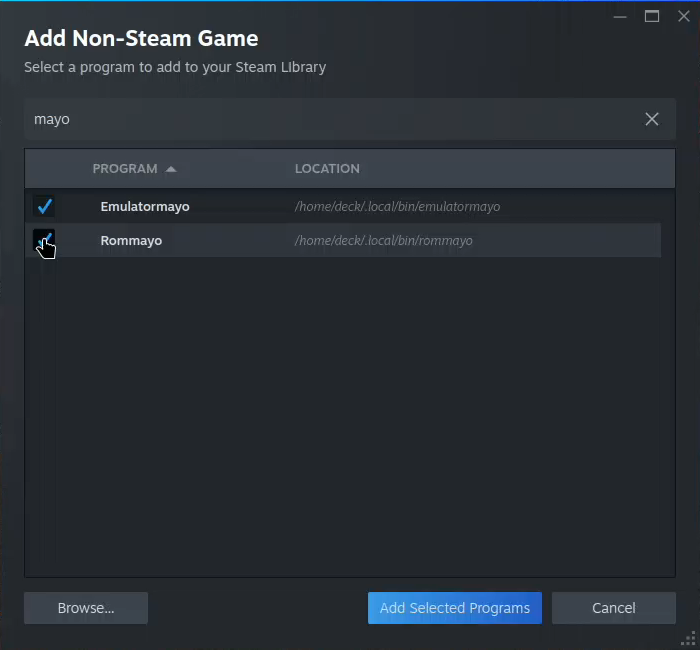
- Open Steam in Desktop Mode. Choose Games → Add a Non-Steam Game to My Library.
- Select Rommayo and choose Add Selected Programs. If it is missing, browse to
/home/deck/.local/bin/rommayo. - The installer’s launcher already includes
--deckand--ozone-platform=x11. In shortcut Properties, leave forced Compatibility / Proton disabled: this is a Linux application. - Choose Return to Gaming Mode on the desktop. Open Library → Non-Steam → Rommayo → Play.
The Deck launcher also excludes injected libraries from its environment. Steam’s overlay injection stalled Electron startup on the tested Deck; use Steam’s system menu for controller settings.
For a manual AppImage download, make it executable and add the AppImage itself to Steam. Set its Launch Options to:
env -u LD_PRELOAD APPIMAGE_EXTRACT_AND_RUN=1 %command% --deck --ozone-platform=x11This handles extraction without FUSE, XWayland and injected overlay libraries. Use this only when the shortcut targets the AppImage directly. The one-line installer’s generated launcher already handles these settings.
3. Open your first game
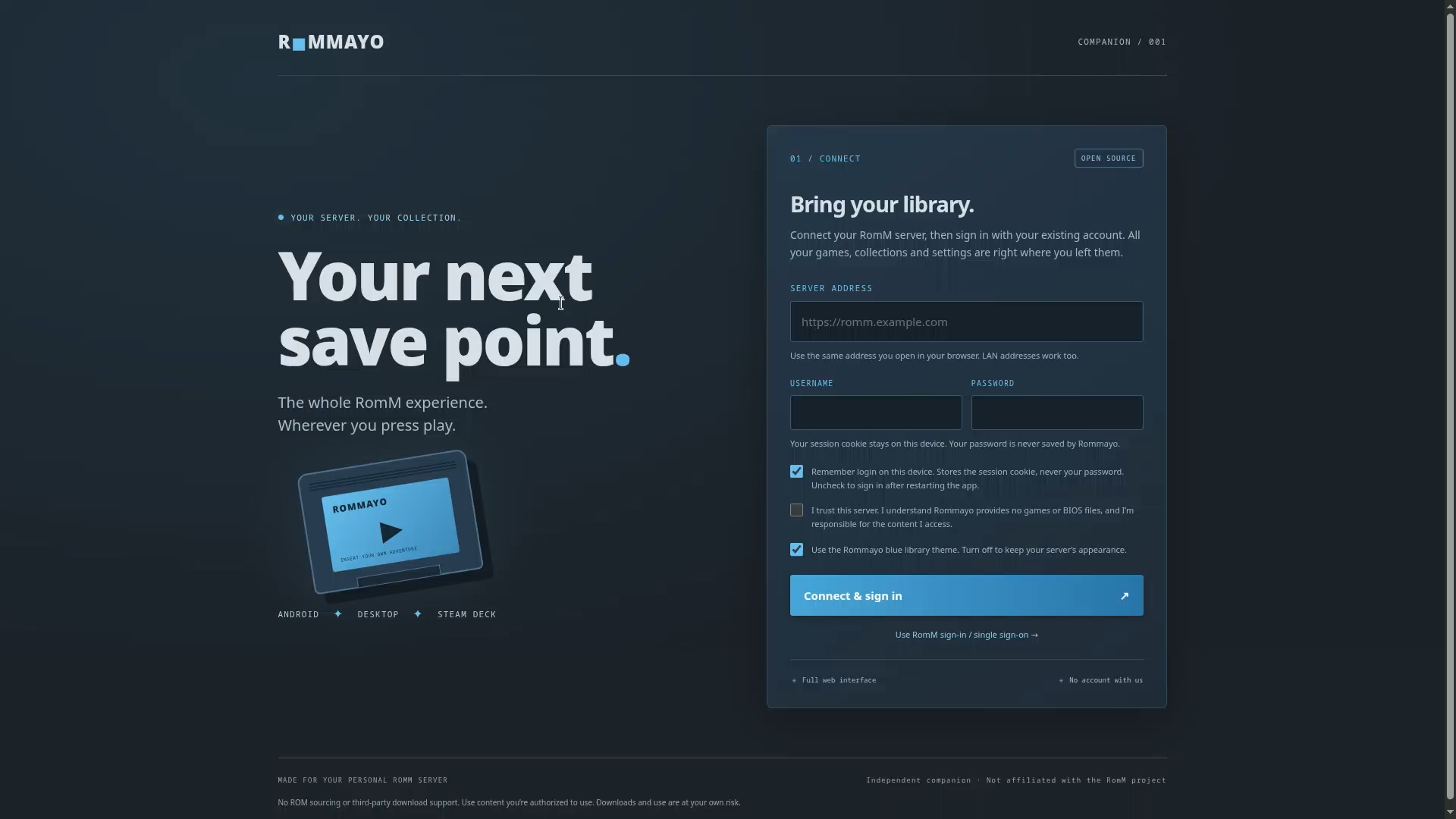
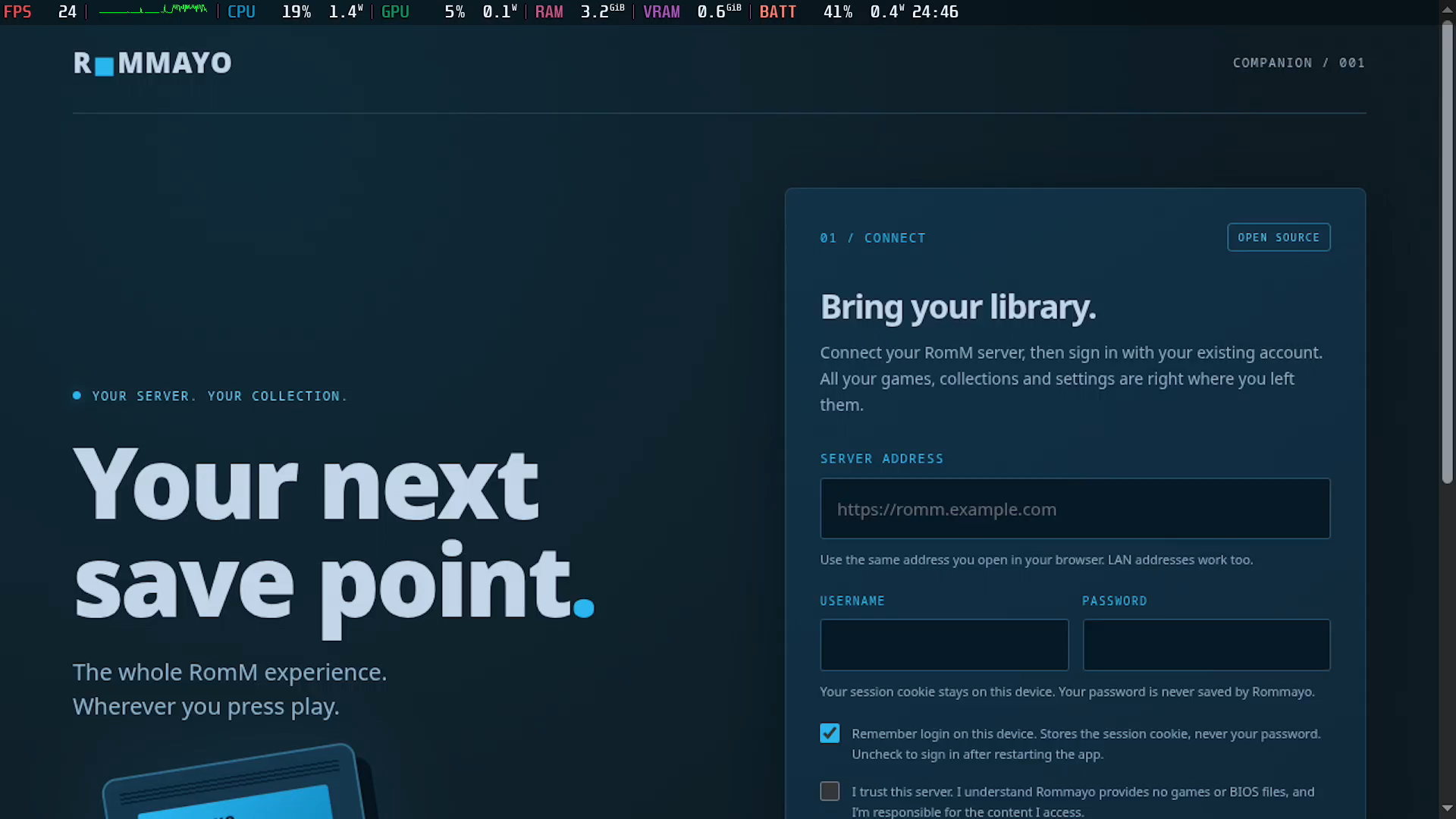
- Enter your RomM server URL or IP, username and password. Use the same address you open in a browser. For an HTTP LAN address, acknowledge the unencrypted connection notice.
- Choose Remember login to keep the session between app restarts. Browse or search your library, open a game and choose Play. Select your core, save or state before starting.
- Use Log out to end this device’s session without removing local game saves. Save or export before leaving a running game.
Desktop Mode and Gaming Mode use the same app profile. There is no need to set up another copy of the app for each mode.
4. Configure Deck controls
Open the Steam shortcut’s controller settings and choose a gamepad layout. Keep the left stick, D-pad and face buttons as gamepad inputs for gameplay. For the setup form and file picker, set the right trackpad to As Mouse and its click to Left Mouse Click; a mouse-click trigger is useful too.
Use STEAM + X for the on-screen keyboard. In the running game, open EmulatorJS → Control Settings and map the detected controller. Menu navigation and gameplay mapping are separate; a template alone does not certify every core’s bindings.
USB or Bluetooth keyboards and mice also work for setup. Close the on-screen keyboard with B / STEAM + X if it duplicates a connected keyboard. On plain HTTP RomM servers, gamepad APIs may be restricted: use trusted HTTPS or map Steam Input to the player’s keyboard controls. A KVM provides keyboard/mouse testing; it cannot substitute for testing the physical Deck buttons.
5. Save, exit and update
Save or export your progress inside the player before leaving. Keep an exported backup before deleting app data or moving devices. Then use the app’s exit action or the Steam menu to close it.
To update, close Rommayo and rerun the installer. It verifies the new download before replacing the app and retains the previous AppImage as Rommayo.AppImage.previous. Your library files and profile are separate from the executable.
Tested hardware and limits
Installation, Desktop Mode login/library and a C64 homebrew core boot, plus Gaming Mode app launch, were verified on a physical Steam Deck through a GLKVM on October 22, 2026, using a 1920 × 1080 docked display. Gaming Mode gameplay and physical-controller verification are still in progress; a running window does not certify every core or game.
If a game fails, check the selected system, file format and any required BIOS. For a missing shortcut, browse to the generated launcher. Leave Proton disabled. The installer uses AppImage extraction, so it does not require installing FUSE or changing SteamOS’s read-only system.
Use only content you are authorized to access. Downloads and use are at your own risk. Independent of Valve and RomM. General setup guide →
Fuel the next save point.
I need help affording my AI token usage :) If Rommayo makes your setup a little more fun, buy the developers a coffee. Always optional. Always appreciated.